Overview

TabNeuron Connector is a lightweight Chrome extension that serves as a bridge between your browser and the TabNeuron desktop application. It enables bidirectional communication via localhost, allowing your browser tabs to sync with an infinite 2D spatial canvas workspace.

Key Benefits:

  • 🔄 Bidirectional Sync: Changes in Chrome reflect on the canvas and vice versa
  • 📸 Tab Previews: Automatic screenshots and metadata extraction
  • 🧠 AI-Powered: Enables AI analysis of tab content across multiple pages
  • 🔒 Local-First: All data stays on your device, no external servers
  • Lightweight: Minimal resource usage with 2-second polling interval

How It Works

The TabNeuron Connector extension reads tab URLs, titles, and page content from your Chrome browser and forwards them to the TabNeuron desktop application running locally on your machine via localhost:5555.

Why This Extension is Needed:

Chrome extensions are the only way to access browser tab data programmatically. TabNeuron uses this bridge to:

  • Extract Tab Metadata: Titles, URLs, favicons, and Open Graph tags
  • Capture Visual Previews: Automatic screenshots for spatial organization
  • Read Page Content: Main content extraction (500-10000 characters, ads stripped)
  • Sync Tab Groups: Bidirectional sync with Chrome's native tab groups

All data processing happens locally. The extension does not collect, store, or transmit any data to external servers.
Screenshots

Promotional Tiles

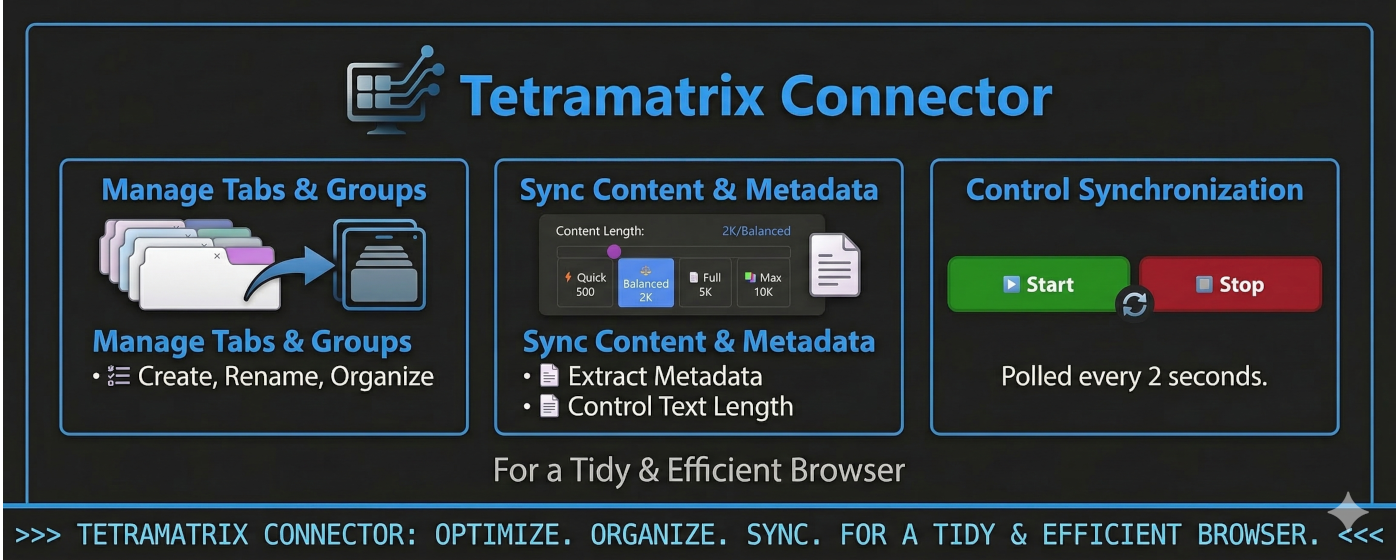
TabNeuron Connector - Scroll Tile Banner
TabNeuron Connector - Chrome Web Store Feature Banner
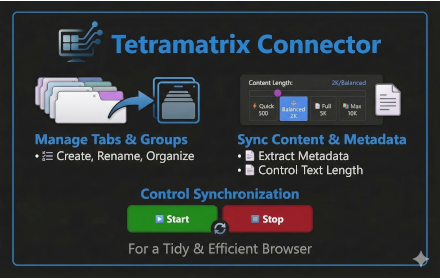
TabNeuron Connector - Ads Tile
TabNeuron Connector - Promotional Tile

Extension Interface

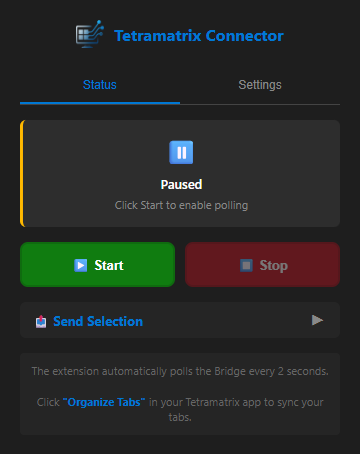
TabNeuron Connector - Status Panel
Connector Status Panel - View connection status and polling activity
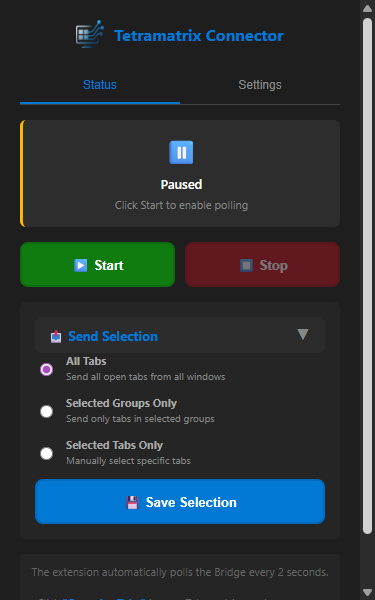
TabNeuron Connector - Send Options
Send Options - Configure what data is transmitted to TabNeuron
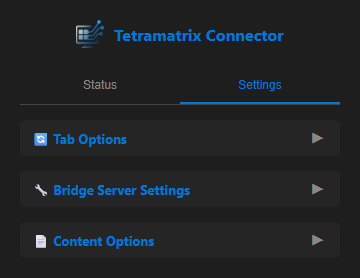
TabNeuron Connector - Main Settings
Main Settings - Configure host, port, and polling interval
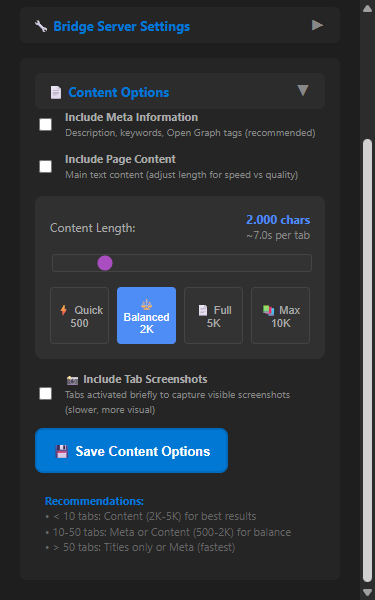
TabNeuron Connector - Content Extraction Options
Content Extraction Options - Customize how page content is extracted
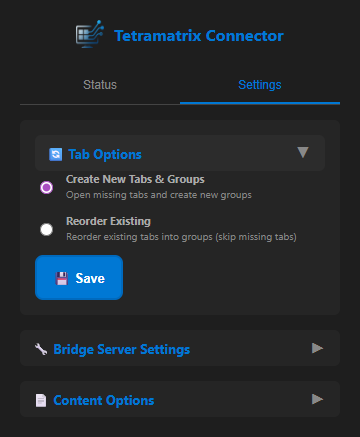
TabNeuron Connector - Tab Options
Tab Options - Configure tab group synchronization settings

Installation

Install from Chrome Web Store

The TabNeuron Connector extension is available in the Chrome Web Store for one-click installation:

Installation Steps:

  1. Click the "Install from Chrome Web Store" button above
  2. On the Chrome Web Store page, click "Add to Chrome"
  3. Confirm by clicking "Add extension" when prompted
  4. Once installed, the extension icon will appear in your Chrome toolbar
  5. Click the extension icon to configure the connection to TabNeuron

✓ Installation Complete! The extension icon should now appear in your Chrome toolbar. Click it to configure the connection to TabNeuron.

Configuration

Connection Settings

After installation, configure the extension to connect to TabNeuron:

  1. Click the TabNeuron Connector icon in Chrome's toolbar
  2. In the popup, navigate to Settings
  3. Set Host to: localhost
  4. Set Port to: 5555
  5. Leave Polling Interval at default (2 seconds)
  6. Click "▶️ Start" to begin synchronization

Content Extraction Options

  • Content Length: Choose between 500-10000 characters per page
  • Strip Ads: Automatically remove advertising content
  • Extract Metadata: Enable Open Graph tags and descriptions

Tab Sync Options

  • Sync Tab Groups: Mirror Chrome's native tab groups
  • Auto-Sync: Automatically detect and sync new tabs
  • Screenshots: Enable/disable automatic tab screenshots

💡 Tip: Launch the TabNeuron desktop application before clicking "Start" in the extension. The status indicator will turn green when connected successfully.

Permissions

The TabNeuron Connector requests the following permissions, all used solely for local communication with the desktop application:

Permission Purpose
tabs Read tab URLs, titles, and favicons for display on the canvas
tabGroups Sync with Chrome's native tab groups for bidirectional organization
scripting Inject content extraction scripts to read page metadata and main content
storage Store connection settings (host, port, polling interval) locally
activeTab Access the currently active tab for quick operations and screenshots

No permissions are used to collect, log, or transmit data to external servers or third parties.

Privacy & Data Handling

TabNeuron Connector is designed with privacy-first principles:

  • 🔒 No External Servers: All data stays on your local machine
  • 🏠 Localhost Only: Communication happens exclusively via localhost:5555
  • 📵 No Telemetry: No analytics, tracking, or usage data collection
  • 💾 Local Storage: Settings stored in Chrome's local storage only
  • 🔐 No Remote Logging: Tab data is never logged or stored remotely

For detailed information, see our Privacy Policy.

Support & Resources

Need help or have questions about TabNeuron Connector?


Report Issues

Found a bug or have a feature request? Please report it on our GitHub repository or join the discussion on Discord.

📧 Contact: For direct support, join our Discord server for real-time assistance from the development team.

Get Started with TabNeuron

Download the TabNeuron desktop application and start organizing your browser tabs with AI.